



 450
450
1. Overview
This article explains how to install and set up the official Fardriver App on both iOS and Android devices. By the end, you’ll be able to connect your controller via Bluetooth, monitor live data, and adjust controller parameters through your phone.
2. Prerequisites
Required Permissions:
You must have access to a smartphone with Bluetooth enabled and permission to install apps from the App Store (iOS) or to download APK files directly (Android).
Software / Tools:
-
Fardriver App for iOS: Available on the Apple App Store
-
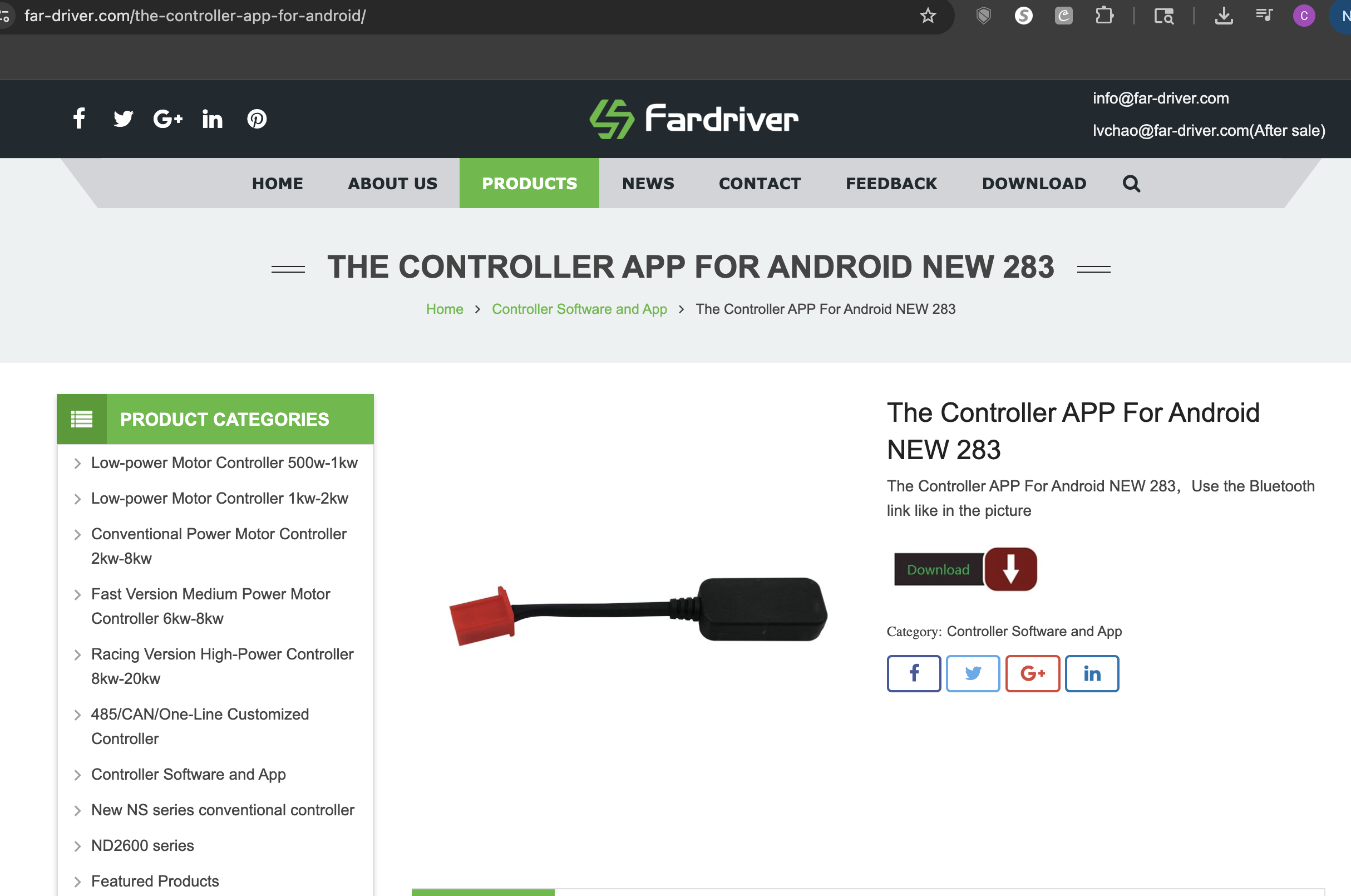
Fardriver App for Android: Download directly from the official Fardriver website → https://www.far-driver.com/the-controller-app-for-android/
-
Stable internet connection for downloading and syncing
-
Bike powered ON to allow Bluetooth pairing
Time Required:
Approximately 2-5 minutes to complete installation and connection.
3. Step-by-Step Instructions (with Visuals)
3.1 Installing the App
For iOS (Apple Devices):
-
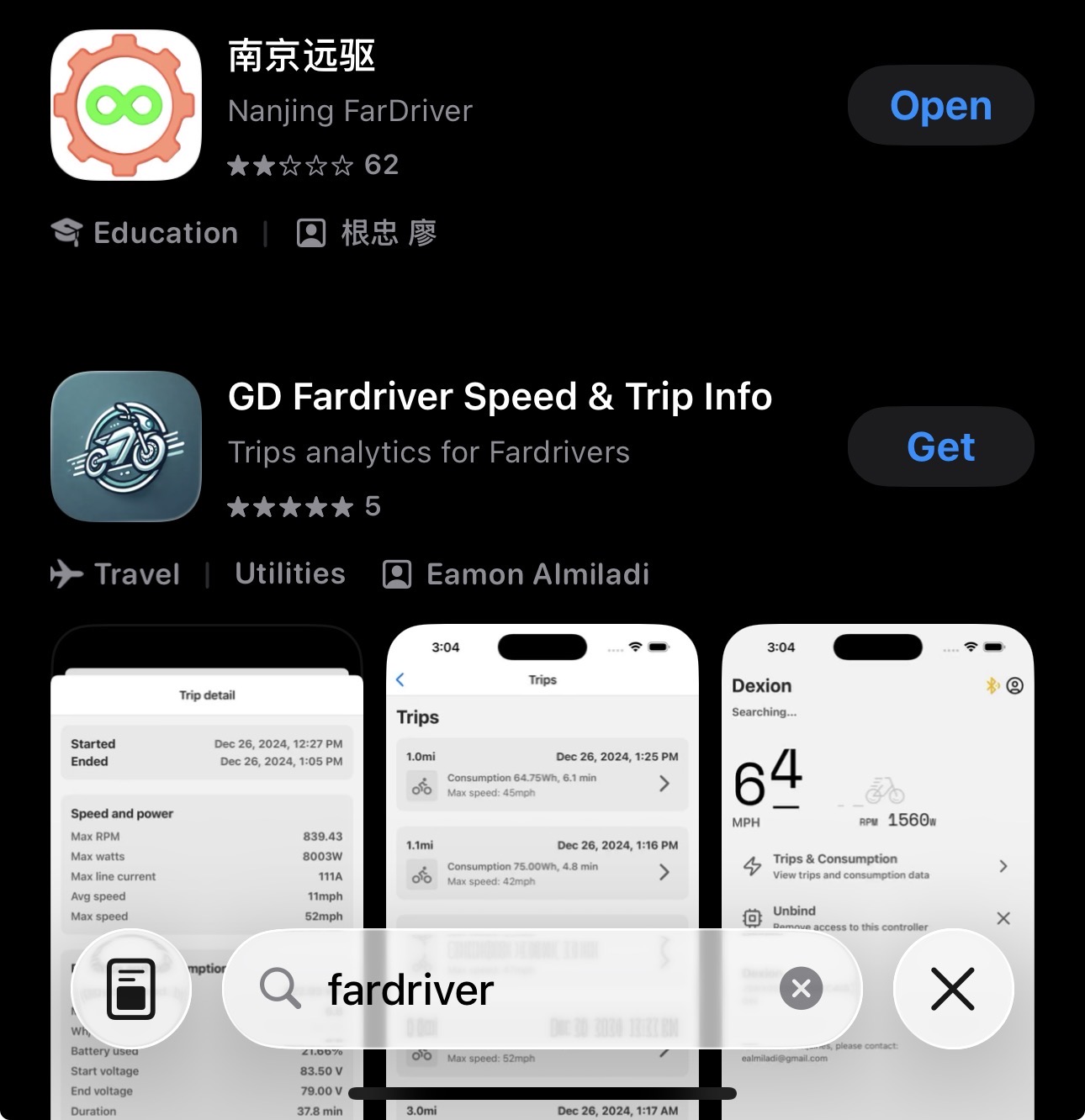
Open the App Store on your iPhone or iPad.
-
In the search bar, type “Fardriver” and tap Download.
-
Once downloaded, open the app and allow Bluetooth permissions when prompted.
For IOS
For Android Devices:
-
Visit the official Fardriver website → https://www.far-driver.com/the-controller-app-for-android/.
-
Tap Download APK and confirm installation when prompted.
-
Once installed, open the app and allow Bluetooth and location access.
3.2 Connecting to the Controller
-
Power ON your bike to activate the Fardriver controller.
-
Open the Fardriver App on your phone.
-
Tap Search Device and wait for your controller to appear in the list.
-
Select your controller, then tap Connect.
-
Wait for the Connection Successful message to appear.
Tip:
If your device doesn’t appear:
-
Move closer to your bike (within 3–5 feet).
-
Move away from other bikes or Bluetooth devices to avoid interference.
-
Make sure Bluetooth is enabled on your phone.
3.3 Confirming Connection & Basic Setup
-
Once connected, the app dashboard will show live data (voltage, current, and temperature).
-
Confirm the app displays your controller model and firmware version.
-
You’re now ready to view performance data or make adjustments if desired.
3.3 Test and Finalize
-
Disconnect from the Fardriver App once setup and pairing are complete.
-
Cycle power on the bike — turn it OFF, wait 5 seconds, and turn it back ON.
-
Reopen the Fardriver App to confirm that the controller automatically reconnects and that live data (voltage, current, and temperature) updates in real time.
-
Perform a short test ride in a controlled environment to verify throttle response, power delivery, and regenerative braking behavior.
-
If adjustments are required, reconnect to the app and fine-tune base parameters such as Low Power Control Mode or Energy Feedback as needed.
Expected Result:
Your Fardriver controller should connect automatically when powered on, display accurate real-time data, and operate smoothly during your test ride.
Tips:
-
Always test in an open and safe area away from traffic.
-
If the app fails to reconnect, close it completely and reopen it before cycling bike power again.
-
We strongly advise against adjusting advanced settings (e.g., motor tuning, FOC parameters, or current limits) unless you are experienced with Fardriver systems or have received guidance from a Pinned Electric technician.
-
Incorrect configuration of advanced parameters may affect performance, safety, or component reliability.
4. Video for Android Installation
https://youtube.com/shorts/cWjTaWR9QIo?si=siQ6DAtBgGrB0CML
5. Pro Tips & Common Issues
Pro Tips
✅ Document Your Settings
Before making any adjustments, take a screenshot of your existing parameters. This makes it easy to revert if performance feels off after testing.
🌡️ Use Real-World Testing
Temperature, elevation, and riding conditions can affect how the controller behaves. Always test your adjustments in real-world riding conditions before finalizing them.
🔄 Update Regularly
The Fardriver app occasionally releases new firmware and compatibility updates. Check periodically to ensure you’re running the latest version for best stability.
⚠️ Avoid Advanced Parameter Changes
We strongly advise against adjusting advanced controller settings such as motor phase parameters, field weakening, or current limits unless directed by Pinned Electric or a qualified technician. Incorrect tuning can cause performance issues or permanent damage to components.
Common Issues & Fixes
❌ Can’t Find Controller in Bluetooth List
-
Ensure your bike is powered ON.
-
Move away from other bikes or Bluetooth devices that might interfere.
-
Toggle your phone’s Bluetooth OFF and ON again, then reopen the app.
⚙️ App Won’t Install on Android
-
Go to Settings → Apps → Install Unknown Apps, and enable permission for your browser or file manager.
-
Re-download the APK directly from Fardriver’s official website.
📶 App Disconnects During Use
-
Keep your phone close to the bike (within 3–5 ft).
-
Avoid switching apps or locking your screen during connection.
-
If disconnects continue, close the app fully and restart your phone.
🔋 No Live Data or Readings
-
Verify the bike is powered ON and the controller is active.
-
Make sure you’re on the Paras tab to view live data.
-
Disconnect and reconnect — the first refresh after pairing may take several seconds.
6. Related Articles
- How to change my Throttle Curve in FarDriver
- How to Download Ant BMS
- What are Advanced Settings in Far Driver?

